


In a world where kids click before they think, keeping them safe online is a real puzzle. A staggering 1 in 3 internet users worldwide are children, making internet safety education critical.
This blog unpacks creative activities and essential lessons to teach Internet safety to kids against digital dangers. Dive in for smart strategies that stick!
Importance of Teaching Internet Safety to Kids
Kids today have access to the internet from an early age, making it essential for them to learn about online safety as part of their basic education. Teaching internet safety is not simply about warning them away from dangers; it’s about building their critical thinking skills so they can make wise decisions independently.
The digital world is vast, and children must understand how to navigate it responsibly. Without proper guidance on cyber safety, young people are vulnerable to a range of threats that include cyberbullying, exposure to inappropriate content, online predators, and privacy breaches.
Educators and parents play a vital role in shaping safe online behaviour by introducing clear and practical internet safety lessons tailored to different developmental stages. From recognising fake news to managing digital footprints and understanding social media risks, students should be equipped with the necessary tools to protect themselves and respect others in the virtual space.
Engaging activities like role-plays or creating digital footprint artwork help solidify these concepts in enjoyable ways that resonate with kids’ experiences. As technology continues its rapid evolution, empowering kids with robust digital citizenship skills will prepare them not just for the current online landscape but also for future developments in this ever-changing domain.
Top Activities to Teach Internet Safety to Kids
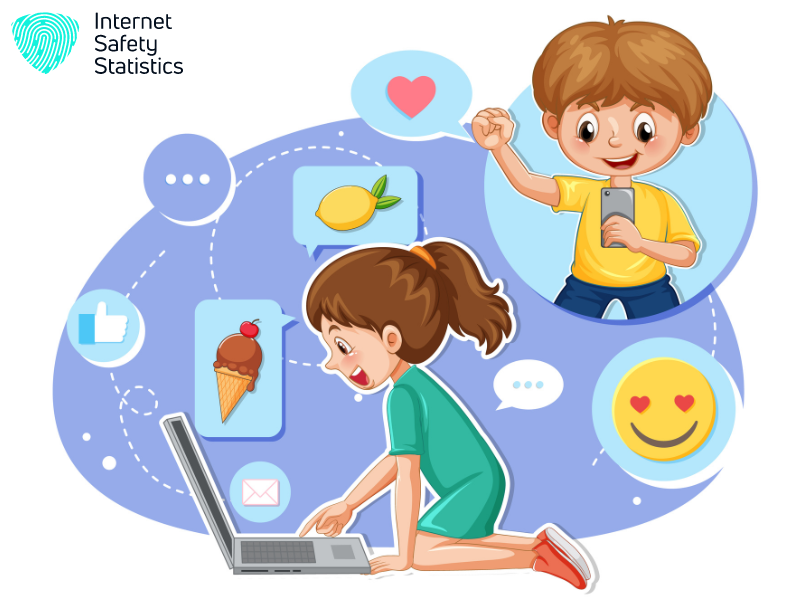
Act out scenarios to teach children how to handle different online situations, use task cards for interactive learning, and engage in read-and-write activities to reinforce internet safety concepts.
Act Out Scenarios
- Create a scenario where a student receives a friend request from someone they don’t know and discuss the best course of action.
- Role-play a situation where a classmate is being cyberbullied and explore ways to handle it.
- Act out a scenario where personal information is requested online, and discuss the dangers of sharing such details.
- Simulate a chat room conversation where someone tries to manipulate or groom the student, emphasising the importance of not trusting strangers online.
Use Task Cards
After acting out scenarios, another effective method for teaching internet safety to kids is through the use of task cards. Task cards are small, portable cards that present a specific question or scenario related to online safety. They can be used in various ways to engage children and facilitate discussions about staying safe on the internet.
- Task cards can be used for role-playing activities where students act out different online situations presented on the cards, allowing them to understand and discuss appropriate responses.
- Teachers can create task cards with scenarios depicting online safety dilemmas, such as identifying potentially unsafe websites or responding to stranger requests, to prompt critical thinking and decision-making among students.
- Another approach is to use task cards as discussion prompts, encouraging open conversations about topics like cyberbullying, password protection, or safe social media interactions.
- Task card activities can also involve group work, with students collaborating to analyse different scenarios and formulate strategies for staying safe online.
- Additionally, educators can develop task cards that emphasise key internet safety concepts like sharing information responsibly and recognising online scams, reinforcing important lessons in an interactive format.
Read-and-write Activities
To reinforce internet safety concepts, reading and writing activities can be empowering tools for students. These activities encourage critical thinking and help children understand the importance of staying safe online.
- Story Creation: Prompt students to write a short story or comic strip about a character who faces a challenge related to internet safety. Encourage them to explore different solutions and outcomes.
- Opinion Writing: Ask students to express their opinions on various internet safety topics, such as online friendships, sharing personal information, or the impact of cyberbullying. This can stimulate thoughtful discussions.
- Research Projects: Assign research tasks on relevant internet safety topics, such as creating digital footprints, privacy settings on social media platforms, or identifying common online scams.
- Digital Citizenship Pledge: Guide students in crafting their own digital citizenship pledge outlining their commitment to safe online behaviour, kindness, and responsible technology use.
- Letter Writing: Encourage students to write letters to their peers or family members about the significance of internet safety and how they can contribute to a safer online community.
- Debate Activities: Organise debates where students can argue different perspectives on internet safety issues, fostering critical thinking and empathy in understanding diverse viewpoints.
- Online Safety Tips Brochure: Engage students in designing an informative brochure with practical tips for staying safe online and promoting positive digital interactions among peers.
- Blogging Activities: Introduce blogging sessions where students can share their experiences with practising good digital citizenship and providing advice to others based on learned internet safety concepts.
Key Concepts to Cover
Teach children to “Share with care”, reminding them to only share personal information with trusted individuals online. Emphasise the importance of recognising and avoiding fake content, securing personal secrets, being kind online, and seeking help when unsure about something.
Read more for detailed activities and lessons on internet safety for kids.
Share with care
Teach kids to share with care to protect their online privacy. Encourage them to think before posting personal information or photos and consider who might see it. Highlight the importance of respecting others’ privacy by not sharing other people’s personal details or images without permission.
Emphasise that once something is shared online, it can be difficult to remove completely.
Discuss the potential consequences of oversharing personal information on social media platforms and how it can impact future opportunities. Use real-life examples and news stories as teachable moments to illustrate the significance of being cautious about what they share online.
Don’t fall for fake
Teaching kids to be cautious about online information is essential. Instruct them to verify the credibility of sources before trusting any content they come across on the internet.
Encourage children to question and cross-reference information, helping them distinguish between real news and fake or misleading content. This prepares them to navigate the digital world smartly.
Be vigilant when it comes to spotting deceptive websites and false claims. Equip kids with critical thinking skills so they can identify warning signs of fake news, scams, and misinformation online.
Secure your secrets
Teach children to secure their secrets by emphasising the importance of keeping personal information private online. Encourage them to understand and recognise what constitutes personal information, such as full names, addresses, passwords, and contact details.
Discuss the potential risks of sharing these details with others on the internet and teach them how to keep this information safe from strangers. Engage in discussions about the significance of securing secrets with care and equip kids with practical steps for staying safe online.
Educate students about the impact of oversharing or disclosing sensitive information to protect their privacy and digital safety. Emphasise setting strong passwords for accounts and explain why they should never be shared with anyone other than trusted adults.
Be kind online
Encouraging kindness online is crucial for fostering a positive and supportive digital environment. Teaching kids about internet etiquette can be achieved through interactive discussions and group activities, helping them understand the impact of their words and actions on others.
It’s essential to emphasise the importance of respectful communication, empathy, and constructive interactions in all online engagements. By integrating these concepts into internet safety lessons, students can develop a greater awareness of the significance of being kind online.
Promoting positive online behaviour contributes to creating a safer and more pleasant online experience for everyone involved. Emphasising the value of respectful conduct in virtual interactions helps children become responsible digital citizens who contribute positively to their online communities.
Talk it out when in doubt
Encourage open communication with children about any doubts or concerns they may have regarding online activity. Engaging in regular conversations about internet safety can help kids feel comfortable seeking help when they encounter something inappropriate or suspicious while online.
By fostering an environment where dialogue is encouraged, parents and educators can empower children to confidently address potential risks and make informed decisions when navigating the digital world.
Teach kids to seek guidance from trusted adults whenever they come across unfamiliar situations on the internet. Creating a supportive network for children to turn to when in doubt about online content helps them develop critical thinking skills and ensures that they understand how to protect themselves from potential online threats.
Recommended Internet Safety Lessons for Different Age Groups

Tailoring internet safety lessons to different age groups is crucial for effectively teaching kids about online safety. From Kindergarten and Early Elementary to High School, there are specific strategies and concepts that can be addressed.
Read on to discover how to best approach internet safety education for each age group.
Kindergarten and Early Elementary
Teaching internet safety to kindergarteners and early elementary students is important to instil good online habits from an early age. Engaging activities, such as interactive stories and simple role-playing scenarios, can help young children understand the basics of staying safe online.
Using fun games and colourful visuals, kids can learn about sharing information appropriately and being kind to others on the internet. Introducing these concepts early on will set a solid foundation for their future digital interactions.
Moving onto “Upper Elementary,” let’s explore more advanced ways to educate older elementary school children about internet safety in an engaging manner.
Upper Elementary
Moving from the foundational concepts taught in Kindergarten and Early Elementary, upper elementary students need more nuanced lessons on internet safety. In this age group, it’s crucial to build upon the basics and introduce more complex ideas such as recognising and dealing with cyberbullying, understanding how online actions can have real-life consequences, and learning about digital footprints.
Engaging activities for teaching internet safety to upper elementary students include interactive scenarios that allow them to practise making safe choices online, creating digital artwork that represents their ideal digital footprint, and conducting research projects on different aspects of online safety.
These activities not only educate but also empower children to navigate the online world responsibly.
Internet safety lesson plans for upper elementary students should emphasise critical thinking skills regarding privacy settings on social media platforms, evaluating the reliability of online information sources, distinguishing between appropriate and inappropriate content, and fostering good digital citizenship habits.
Middle School
Middle school is a crucial time to teach internet safety. Educators can use engaging activities such as role-plays, digital footprint artwork, and interactive discussions to help students think critically about online safety.
Lessons for this age group should cover important concepts like sharing information responsibly, identifying fake content, keeping personal information secure, and being kind in online interactions.
These lessons are designed to equip middle school students with the necessary skills to navigate the digital world safely.
As students enter middle school, they become more independent both online and offline. Therefore, it is essential to provide them with the knowledge and tools required to make informed decisions when using the Internet.
High School
High school students require internet safety lessons that address their growing independence and use of social media, emphasising privacy, online reputation, and identifying potential risks.
Engaging activities for teaching internet safety to high school students may include creating digital footprints, discussing the impact of cyberbullying, evaluating the credibility of online information sources, and understanding the implications of sharing personal information on social media platforms.
Lessons must incorporate practical scenarios relevant to teenagers’ experiences to effectively convey the importance of safe online practices at this critical stage.
Educators can implement hands-on activities, such as role-playing situations involving peer pressure or personal boundaries in an online setting which allows for open discussions about real-life challenges.
Resources for Teaching Internet Safety
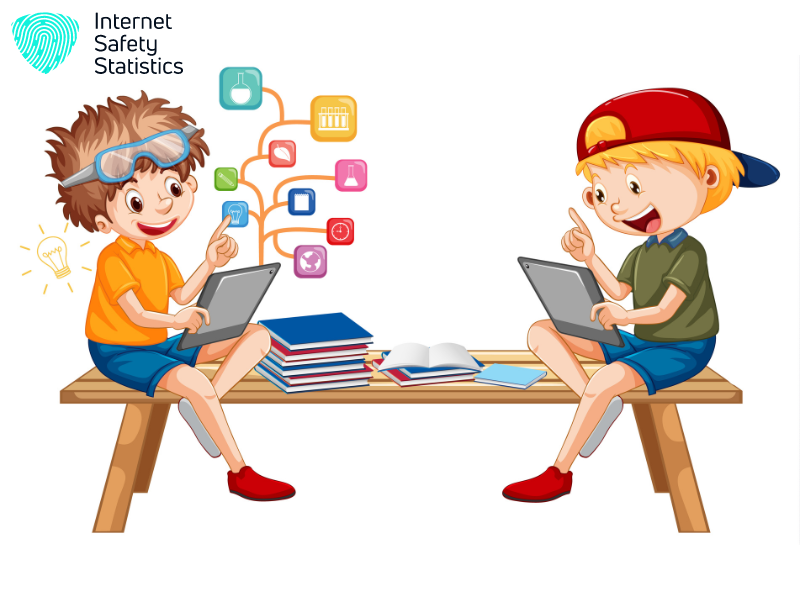
The Be Internet Awesome program offers interactive games and activities to teach kids about online safety. There are also free lesson plans and additional resources available for educators to use in their classrooms.
Be Internet Awesome programme
The Be Internet Awesome programme provides a comprehensive curriculum for teaching internet safety to kids. The programme offers engaging and interactive resources, including lesson plans, games, and activities, to help children develop critical thinking skills and make smart decisions online.
With a focus on key concepts such as sharing with care, identifying fake content, securing personal information, being kind online, and seeking help when needed, the Be Internet Awesome programme equips educators with the tools they need to effectively teach children about staying safe in the digital world.
Educators can make use of the free resources provided by the Be Internet Awesome programme to create a fun and informative learning environment that promotes online safety. By incorporating these materials into their lessons, teachers can empower students at various age groups – from kindergarten through high school – to become responsible digital citizens and navigate the internet confidently while protecting themselves from potential online risks.
Free lesson plans and activities
Discover a range of free lesson plans and activities designed to teach internet safety to kids of all ages. Engage students with interactive resources focused on online security, social media safety, and the importance of sharing information responsibly.
These ready-to-go lessons cover key concepts such as “Share with care,” “Be kind online,” and “Don’t fall for fake” with engaging exercises like scavenger hunts, quiz shows, and role-plays.
With these dynamic materials at hand, educators can effectively guide children through the complexities of staying safe in the digital world while encouraging them to think critically about their online behaviour.
Utilise diverse resources tailored for different age groups, from kindergarten to high school students. Internet safety activities are thoughtfully curated to help young learners grasp essential principles such as creating positive digital footprints and understanding appropriate computer use.
Additional resources for educators
Internet safety is a crucial topic for educators to address, and there are numerous resources available to support teaching Internet safety to students. The “Be Internet Awesome” programme provides interactive games and activities tailored to different age groups, helping educators engage students in learning about online safety.
Additionally, free lesson plans and activities are accessible for educators looking to teach internet safety concepts effectively. These resources cover important topics such as sharing with care, recognising fake information, securing personal information, and being kind online.
Educators can also explore various websites offering additional tools and materials specifically designed for teaching internet safety to kids. With the availability of these resources, educators have the means to create engaging lessons that equip students with essential knowledge on staying safe while using the internet.
Conclusion
Teaching internet safety to kids through engaging activities and lessons is crucial. Activities such as acting out scenarios, using task cards, and read-and-write activities can make learning about online safety enjoyable for children.
It’s essential to cover key concepts like sharing with care, recognising fake information, securing secrets, being kind online, and seeking help when unsure of ensuring comprehensive understanding.
Educators can utilise various resources available for different age groups to effectively teach internet safety and empower children with the knowledge needed to stay safe online.
FAQs
1. What are good ways to teach internet safety for students?
Teachers and parents can use engaging activities like Internet safety games and create interactive lesson plans that cover important topics such as online grooming and child safety.
2. Can you find fun activities to help children learn about online safety?
Absolutely! There are many engaging Internet safety scenarios designed as games, which make learning about staying safe online an enjoyable experience for children.
3. Why is it crucial to teach children about internet safety early on?
Early education on Internet safety equips children with the knowledge they need to navigate the web safely, protecting them from potential hazards such as online grooming.
4. How often should we discuss internet safety with children?
Regular discussions and refreshers using age-appropriate lessons ensure that children remain aware of their digital environment’s risks and how best to manage their online presence responsibly.